Creating a Variable
Method 1 — Use as variable toggle (Design tab)
Section titled “Method 1 — Use as variable toggle (Design tab)”For text, image, QR code, and barcode elements that are already on the canvas:
- Select the element.
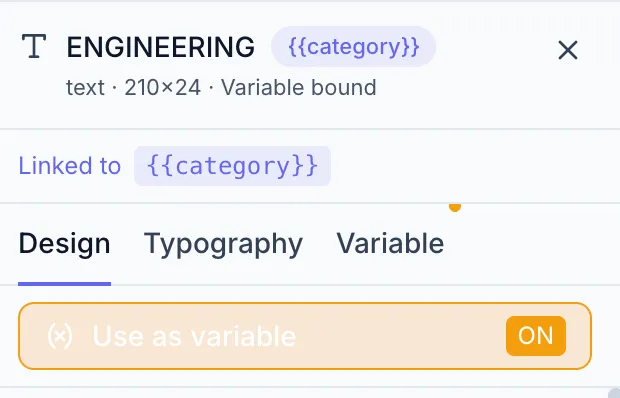
- In the Design tab, find the Variable Binding Strip just below the tab bar.
- Toggle Use as variable to ON.
The element is now variable-bound. A {{variableName}} badge appears in the element header, and the Variable tab becomes active in the Properties panel.
Method 2 — Image Variable tool (tool palette)
Section titled “Method 2 — Image Variable tool (tool palette)”For image placeholders created specifically as variable images:
- Press
Ior click the Image Variable tool in the toolbar. - A 200 × 200 image placeholder is placed on the canvas with an auto-generated variable name (e.g.
{{image_1}}). - Open the Variable tab to configure the name and settings.
After binding
Section titled “After binding”Once an element is bound to a variable:
- Go to the Variable tab to set the variable Name, Default value, Label, Description, and Required flag.
- The element shows a badge with the variable name in the Layers panel and Properties header.
- The Variables panel (left sidebar) lists it.
See Variable Settings for details on each field.
Removing a variable binding
Section titled “Removing a variable binding”Toggle Use as variable back to OFF in the Design tab. The element reverts to a regular element; any previously set variable name is cleared.