

Rendering a Single Image
Opening the Generate dialog
Section titled “Opening the Generate dialog”Click the Generate button (⚡ icon, top right). The Generate & Download modal opens on the Preview tab.
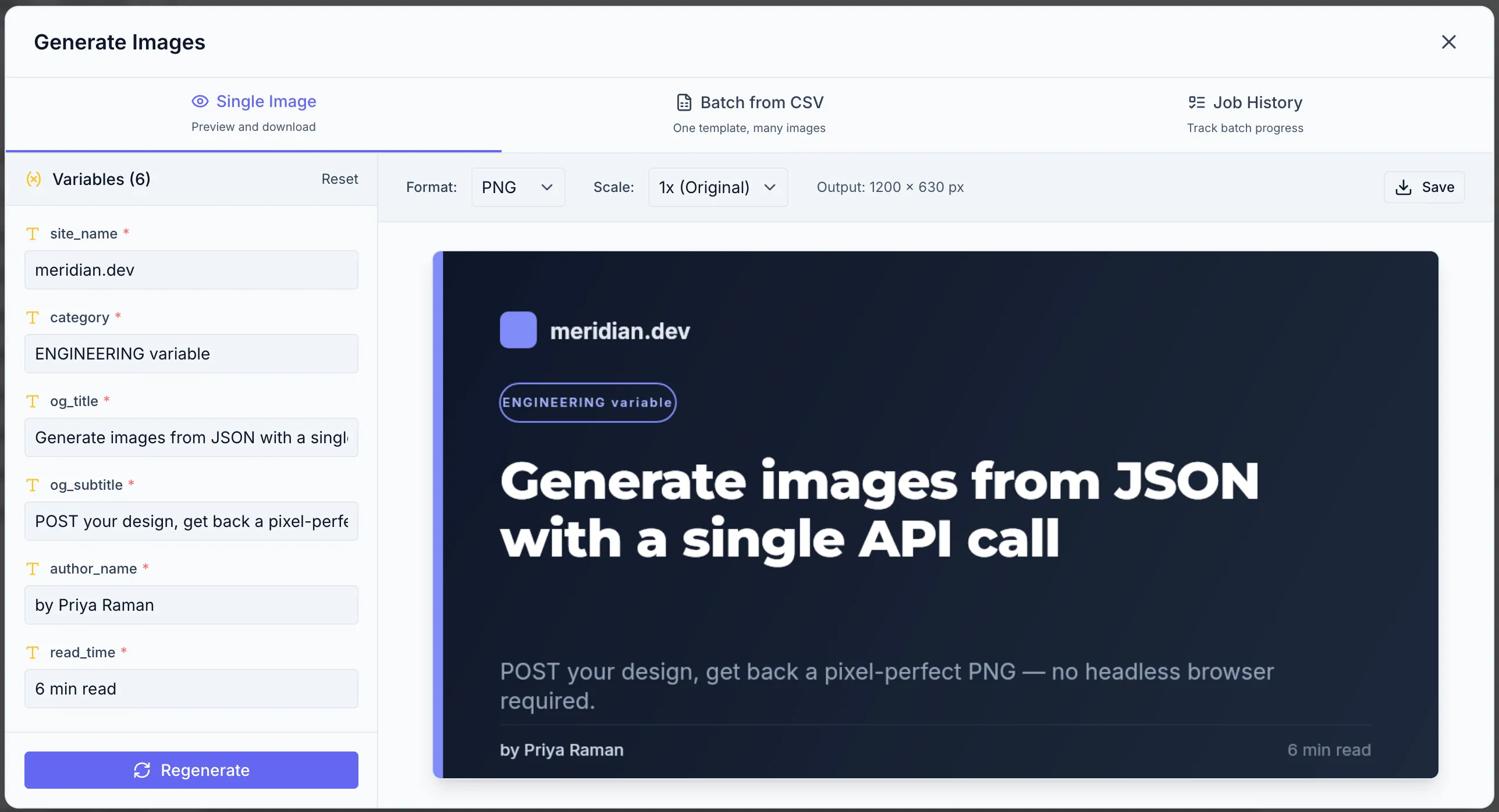
Format options
Section titled “Format options”| Option | Choices |
|---|---|
| Format | PNG, JPEG, WebP, PDF |
| Scale (screen mode) | 1×, 2×, 3×, 4× |
| Output DPI (print mode) | 96, 150, 300 (or custom) |
| JPEG Quality (JPEG only) | 0–100% slider |
Choose the format and quality settings before generating. For web use PNG or WebP at 1–2×. For print use PDF or PNG at 300 DPI.
Filling in variables
Section titled “Filling in variables”If your template has variables, a Variables (N) panel appears on the left side of the modal. Each variable shows its Label (the human-readable name you set) and an input field.
- Fields are pre-filled with default values from the Variable tab.
- Edit any field to test a specific value.
- Click Reset to restore all fields to their defaults.
Generating the preview
Section titled “Generating the preview”Click Generate Preview. Zandovi renders the template server-side and displays the result. Generation typically takes a few seconds.
If a required variable is left blank the render uses the default value. A warning is shown if no default is set for a required variable.
Downloading
Section titled “Downloading”Click Download [Format] (e.g. Download PNG) beneath the preview to save the image to your computer.
The download filename is the template name followed by the format extension.
Sharing instead of downloading
Section titled “Sharing instead of downloading”Next to the download button is Share, which publishes the render at a public URL and copies the link to your clipboard. Use it when you’d otherwise attach a file to an email or a chat message.
Sharing publishes the image already on screen, so it doesn’t cost an extra render. The exception is PDF: it has no inline preview, so its button reads Render & Share and it does consume one render.
Anyone with the link can open it, and links expire after a plan-dependent number of days. Full details — including how to revoke a link — are in Public Share Links.