

QR Codes
Adding a QR code
Section titled “Adding a QR code”Click the QR Code tool in the toolbar. A QR code element is placed on the canvas at a default size (minimum 75 × 75 px).
QR code properties
Section titled “QR code properties”Select the QR element, open the Design tab → Appearance section.
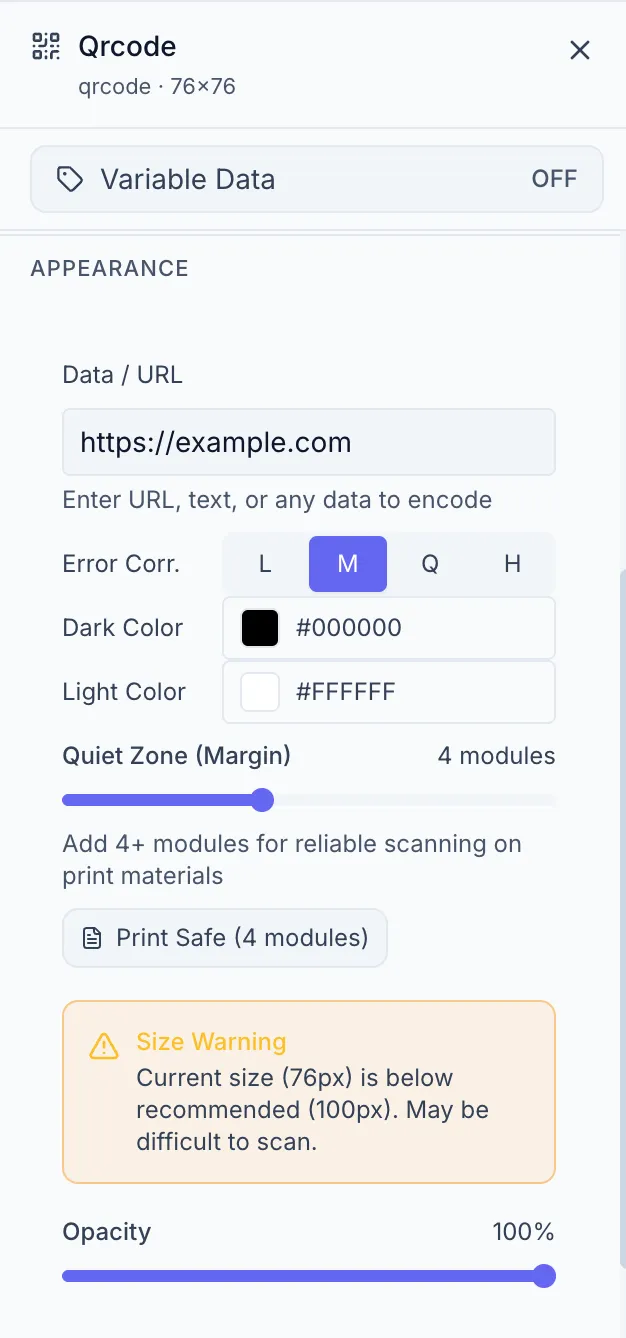
Data / URL
Section titled “Data / URL”Enter the URL or text the QR code should encode. This can be a static value or you can bind it to a variable (see Creating a Variable).
Error Correction Level
Section titled “Error Correction Level”Higher error correction makes the QR code scannable even if partially obscured or damaged, at the cost of a more complex (denser) pattern.
| Level | Label | Recovery capacity |
|---|---|---|
| L | Low | ~7% |
| M | Medium | ~15% (default) |
| Q | Quartile | ~25% |
| H | High | ~30% |
For print materials use Q or H.
Colors
Section titled “Colors”| Control | Description |
|---|---|
| Dark Color | The color of the QR modules (default: black) |
| Light Color | The background color (default: white) |
Ensure sufficient contrast between dark and light colors for reliable scanning.
Quiet Zone (Margin)
Section titled “Quiet Zone (Margin)”The quiet zone is the empty border around the QR code required for scanners to locate it. The slider ranges from 0 to 10 modules.
A warning badge appears below the controls if the quiet zone is below the recommended size.
Size constraints
Section titled “Size constraints”The minimum size for a QR code element is 75 × 75 px (100 × 100 px recommended for reliable scanning). If you resize below this the Properties panel shows a warning.
Binding a QR code to a variable
Section titled “Binding a QR code to a variable”To make the QR data dynamic (different for each generated image), bind the element to a variable. Go to the Variable tab. See Variable Settings.