

Built-in Template Gallery
Zandovi includes a library of professionally designed templates across many categories. Use them as-is or as a starting point you customize.
Opening the gallery
Section titled “Opening the gallery”Click the Project Templates icon in the left sidebar rail (images icon, tooltip: “Project Templates”). This opens the gallery for your current workspace.
Alternatively, from an empty project click Choose from Built-in Templates.
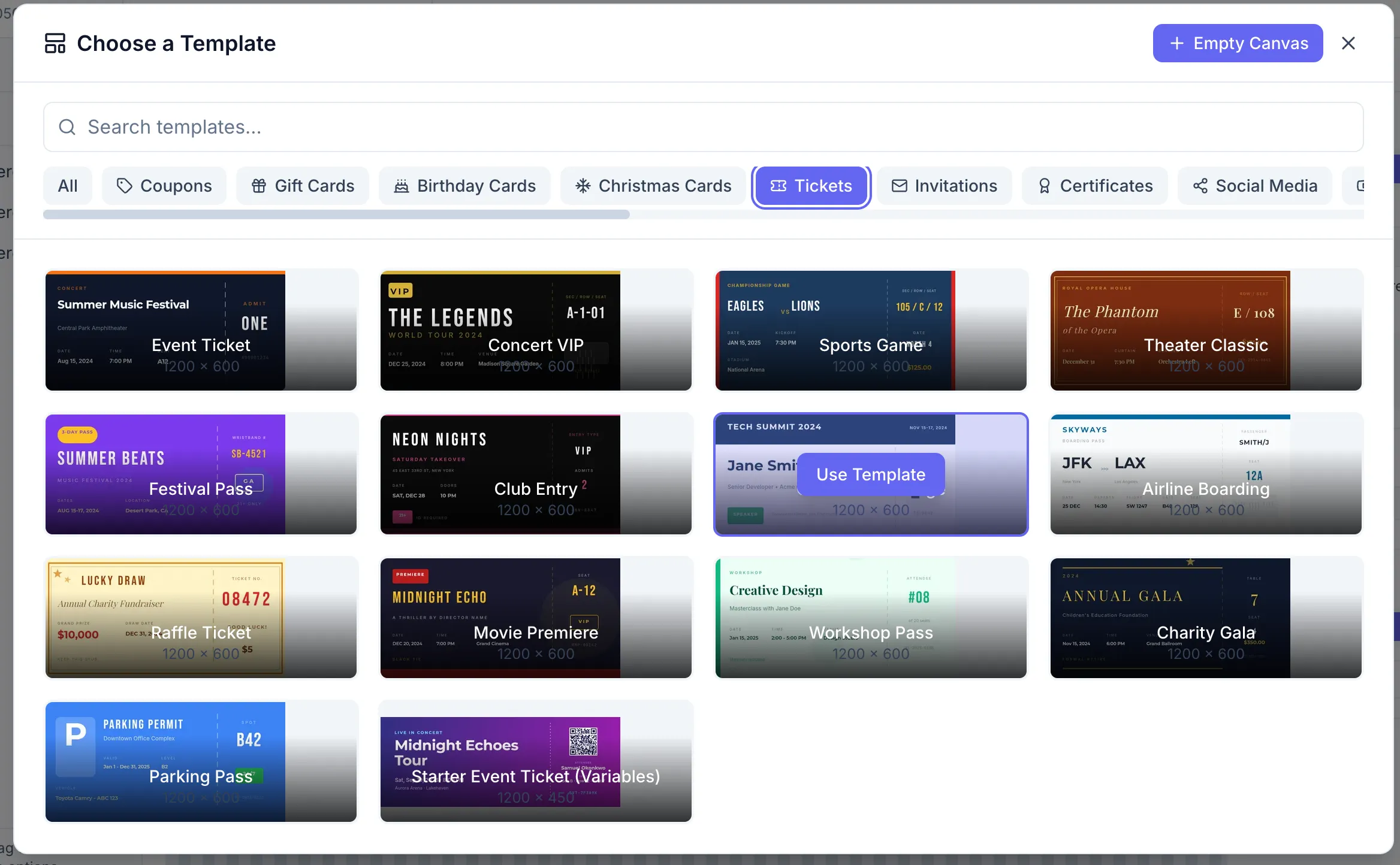
Template categories
Section titled “Template categories”Built-in templates are organized by use case:
- Gift Cards
- Birthday Cards
- Coupons
- Tickets
- Social Media
- Certificates
- Invitations
- Food Cards
- Shipping Labels
- YouTube Thumbnails
- Real Estate
- Reviews
- Podcasts
- Open Graph
- E-commerce
- Event Badges
- Christmas Cards
- Invoices
Using a template
Section titled “Using a template”- Search or browse to find a template you like.
- Click Use this template.
- If you haven’t chosen a destination project yet, a dialog asks which project to add it to.
- The template opens in the Designer ready to edit.
Project Templates vs My Templates
Section titled “Project Templates vs My Templates”The Project Templates panel shows two tabs on a Team plan:
- My Templates — templates you’ve created and saved in this workspace.
- Shared Templates — templates your teammates have shared.
You can share or delete your own templates from this panel using the icons on each card.