

Images
Adding an image
Section titled “Adding an image”There are three ways to get an image onto the canvas:
1. Your uploads (My Images)
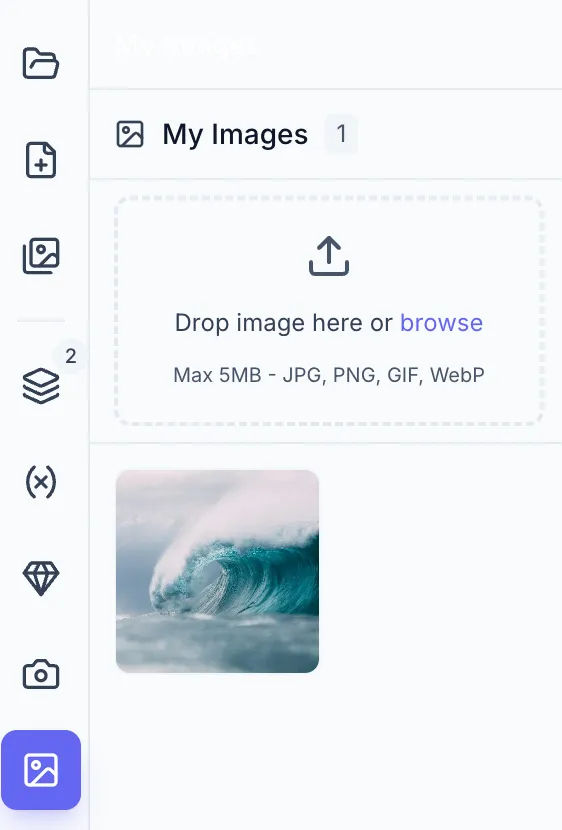
Section titled “1. Your uploads (My Images)”Click My Images in the left sidebar rail (image icon) to open your uploads library. Drag an image file into the panel — or click the upload area to pick one — to add it to your library, then click its thumbnail to place it on the canvas. Uploaded images stay in the library for reuse across templates.
Supported formats: PNG, JPEG, GIF, WebP · Max size: 5 MB per image.
2. Stock images
Section titled “2. Stock images”Click Stock Images in the sidebar rail (camera icon) to open the stock photo panel.
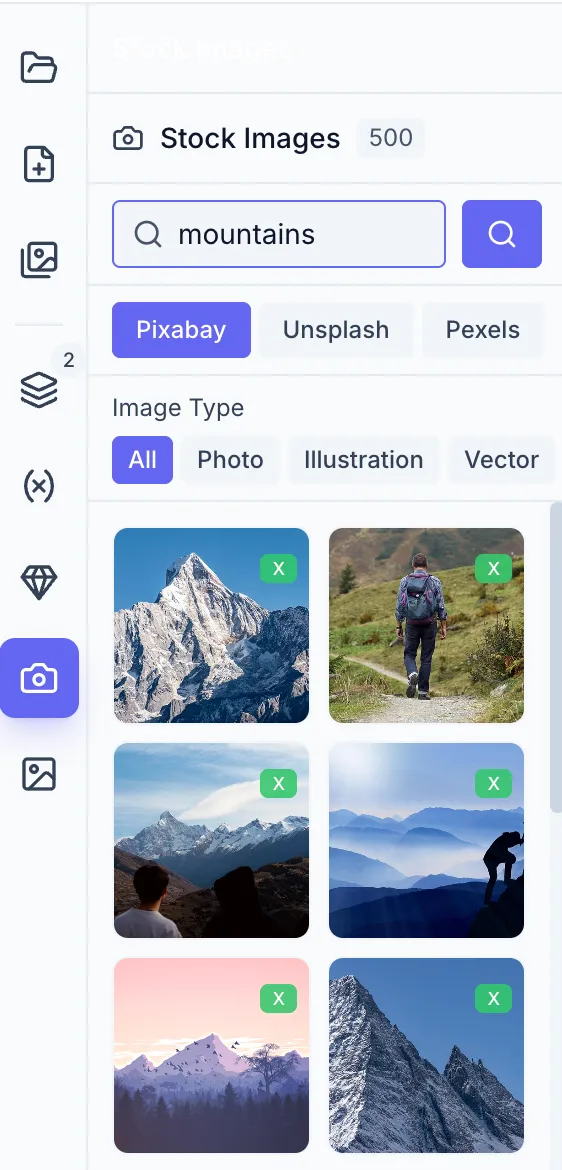
- Select a provider tab — Pixabay, Unsplash, or Pexels (tabs appear when more than one provider is available).
- (Pixabay only) Filter by image type: All / Photo / Illustration / Vector.
- Type a search term (at least 2 characters) and press
Enter. - Scroll through results; more load automatically as you reach the bottom.
- Click a thumbnail to add the image to the canvas. The required attribution is shown under each thumbnail.
3. Image Variable (placeholder)
Section titled “3. Image Variable (placeholder)”Click the Image Variable tool in the toolbar (image-plus icon). It drops an empty 200 × 200 placeholder bound to an auto-named variable (e.g. image_1); the actual image is supplied at render time through that variable. See Creating a Variable.
Image properties
Section titled “Image properties”Select an image and open the Design tab. The Appearance section shows:
| Property | Description |
|---|---|
| Radius | Rounds the corners of the image, in px |
The Transform section handles position, size, rotation, and flip.
For an image variable (placeholder), the properties also include a Fit Mode — Cover, Contain, or Fill — which controls how the supplied image fills the box, plus a default (fallback) image used when no value is provided. See Variable Settings.
Changing an image
Section titled “Changing an image”There’s no in-place replace: to swap a placed image, delete the element and add the new one from My Images or Stock Images. For an image variable, you don’t edit the element — supply a different image value at render time (via the Generate dialog, a CSV, or the API).