

Arrange, Align & Layer Order
Layer order
Section titled “Layer order”Every element on the canvas exists at a specific depth in the stack. The topmost element appears in front of all others.
Layer order controls
Section titled “Layer order controls”Find the Arrange section at the bottom of the Design tab, or use the floating selection menu (above the selected element).
![Arrange section in the Properties panel showing four layer-order buttons (Send to Back, Send Backward, Bring Forward, Bring to Front with their ⌘⇧[ / ⌘[ / ⌘] / ⌘⇧] shortcuts) and below them three canvas-alignment buttons (Center Horizontally, Center Vertically, Center Both).](/_astro/arrange-align-layer-order-layer-order-controls.DyM3AuDl_1BUWlC.webp)
| Button | Shortcut | Action |
|---|---|---|
| Send to Back | ⌘⇧[ | Move to the very bottom of the stack |
| Send Backward | ⌘[ | Move one level down |
| Bring Forward | ⌘] | Move one level up |
| Bring to Front | ⌘⇧] | Move to the very top of the stack |
The keyboard shortcuts above only apply when a single element is selected. To reorder more than one element at once, use the Order control in the floating selection menu (it applies to every selected element). You can also reorder by dragging rows in the Layers Panel.
Canvas alignment
Section titled “Canvas alignment”Align a single element relative to the canvas:
| Button | Effect |
|---|---|
| Center Horizontally on Canvas | Centers the element horizontally |
| Center Vertically on Canvas | Centers the element vertically |
| Center Both on Canvas | Centers both axes simultaneously |
Multi-element alignment & distribution
Section titled “Multi-element alignment & distribution”Select two or more elements. The floating selection menu above the canvas shows:
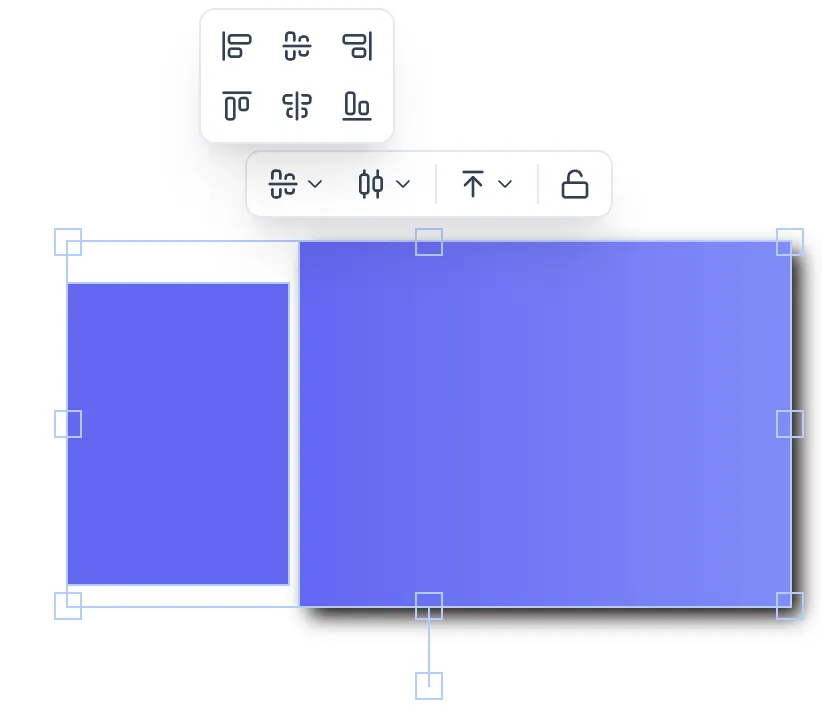
All align options are relative to the bounding box of the entire selection (unless only two items are selected, in which case alignment is relative to each other).
| Option | Description |
|---|---|
| Align Left | Align left edges |
| Center Horizontally | Align horizontal centers |
| Align Right | Align right edges |
| Align Top | Align top edges |
| Center Vertically | Align vertical centers |
| Align Bottom | Align bottom edges |
Distribute
Section titled “Distribute”Evenly spaces three or more selected elements:
| Option | Description |
|---|---|
| Distribute Horizontally | Even spacing along the X axis |
| Distribute Vertically | Even spacing along the Y axis |