

Sharing Projects
Projects are Private by default — only you can see them. On a Team plan you can share a project so all workspace members can view and edit its templates.
Sharing a project
Section titled “Sharing a project”- Hover over the project in the Project Picker and click the lock icon.
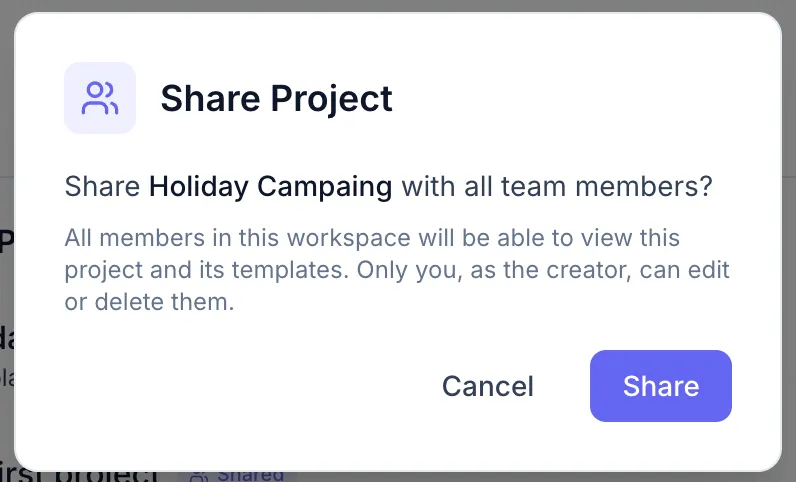
- A confirmation dialog explains what sharing means: all workspace members will be able to open and edit templates in this project.
- Confirm to share.
The lock icon changes to an open-lock (shared state) and the project is now visible to all workspace members.
Making a project private again
Section titled “Making a project private again”Repeat the same steps — click the lock icon on a shared project. A confirmation dialog asks you to confirm reverting to private.
What teammates can do with shared projects
Section titled “What teammates can do with shared projects”Workspace members who open a shared project can:
- View all templates in the project.
- Edit and save templates they own.
- Open templates owned by others in Read-only mode (shown by the “Read only” badge in the header save-status area).
- Use a shared template as a starting point via Use this template (see Reusing & Copying Templates).