

Adding & Selecting Elements
The tool palette
Section titled “The tool palette”The tool palette runs across the center of the header. Each tool is activated by clicking it or pressing its keyboard shortcut.
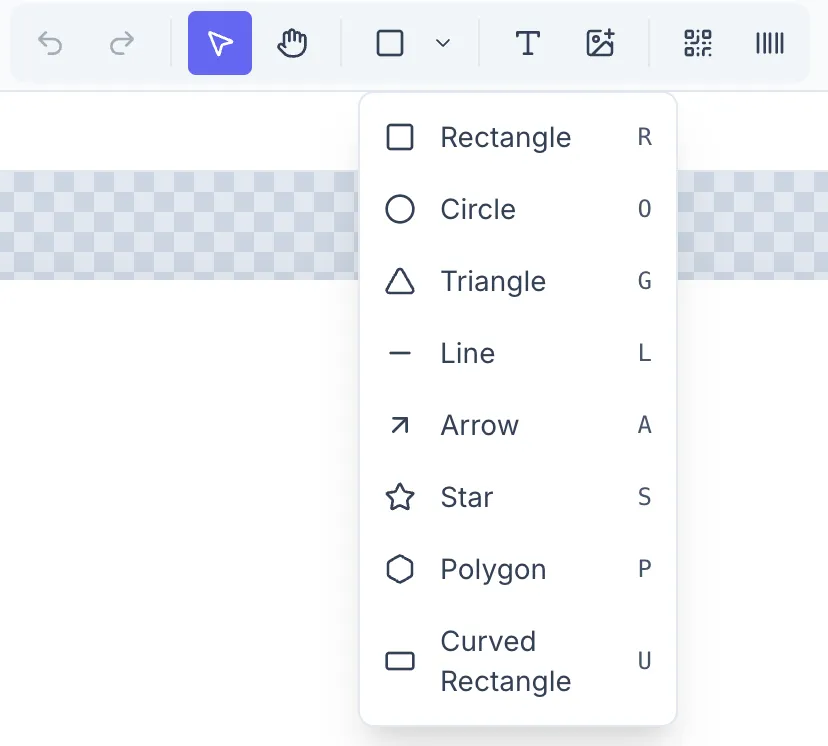
| Tool | Key | What it adds |
|---|---|---|
| Select | V | Selection tool (default) |
| Hand | H | Pan tool |
| Rectangle | R | Rectangle shape |
| Circle | O | Circle shape |
| Triangle | G | Triangle shape |
| Line | L | Straight line |
| Arrow | A | Arrow (line with arrowhead) |
| Star | S | Star shape |
| Polygon | P | Regular polygon |
| Curved Rectangle | U | Rectangle with a curved side |
| Text | T | Text element |
| Image Variable | — | Image placeholder (for variable images) |
| QR Code | — | QR code element |
| Barcode | — | Barcode element |
The shape tools share one slot in the toolbar — the last-used shape is shown as the primary button. Click the arrow to expand the dropdown and pick a different shape.
The Image Variable, QR Code, and Barcode tools are added from the toolbar only — they don’t have keyboard shortcuts.
Adding an element
Section titled “Adding an element”- Activate a tool (click or press the shortcut key).
- Click on the canvas to place the element at a default size, or click and drag to draw it at a custom size.
- The element is added and selected immediately.
For image-based elements (Image Variable, QR, Barcode) the element appears at a default size and you configure its content in the Properties panel.
Selecting elements
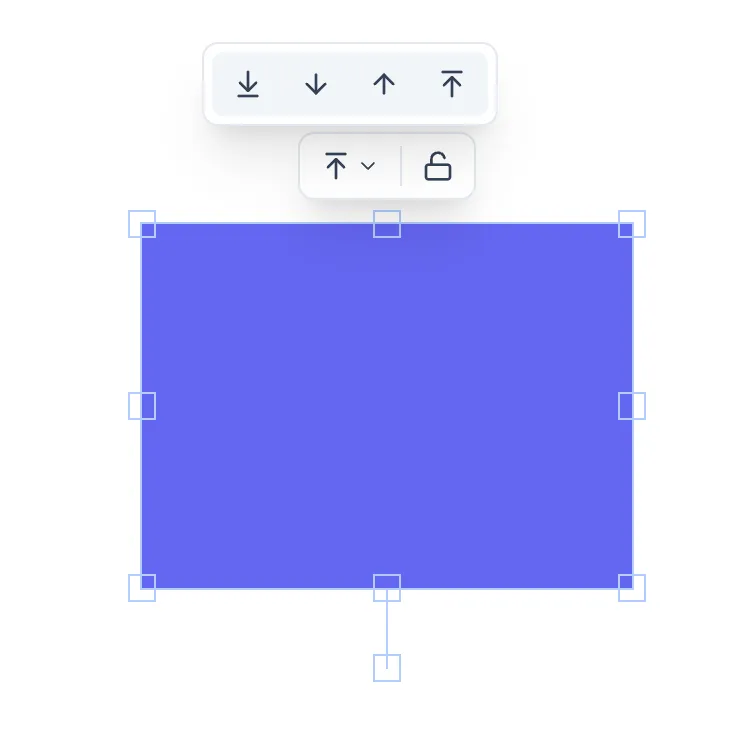
Section titled “Selecting elements”Single select: Click any element with the Select tool (V). Selection handles (blue squares) appear at the corners and edges.
Multi-select: Hold Shift and click additional elements. You can also drag a marquee selection rectangle over multiple elements.
Select all: Cmd/Ctrl + A.
Deselect: Press Escape or click on an empty area of the canvas.
Moving elements
Section titled “Moving elements”Drag a selected element to reposition it. Hold Shift while dragging to constrain movement to horizontal or vertical.
Resizing elements
Section titled “Resizing elements”Drag a corner or edge handle. Hold Shift to maintain the aspect ratio.
The floating selection menu
Section titled “The floating selection menu”A small toolbar floats above the selected element(s):
- Single selection: Layer order dropdown, Lock/Unlock toggle.
- Multi-selection: Align dropdown (Left/Center H/Right/Top/Center V/Bottom), Distribute dropdown (Horizontally/Vertically), Layer order, Lock/Unlock.
Context menu (right-click)
Section titled “Context menu (right-click)”Right-click a selected element for: Cut, Copy, Paste, Duplicate, Bring to Front, Send to Back, Lock/Unlock, Delete.
Right-click an empty canvas area for: Paste, Select All, Canvas Settings….