

Changing Your Plan
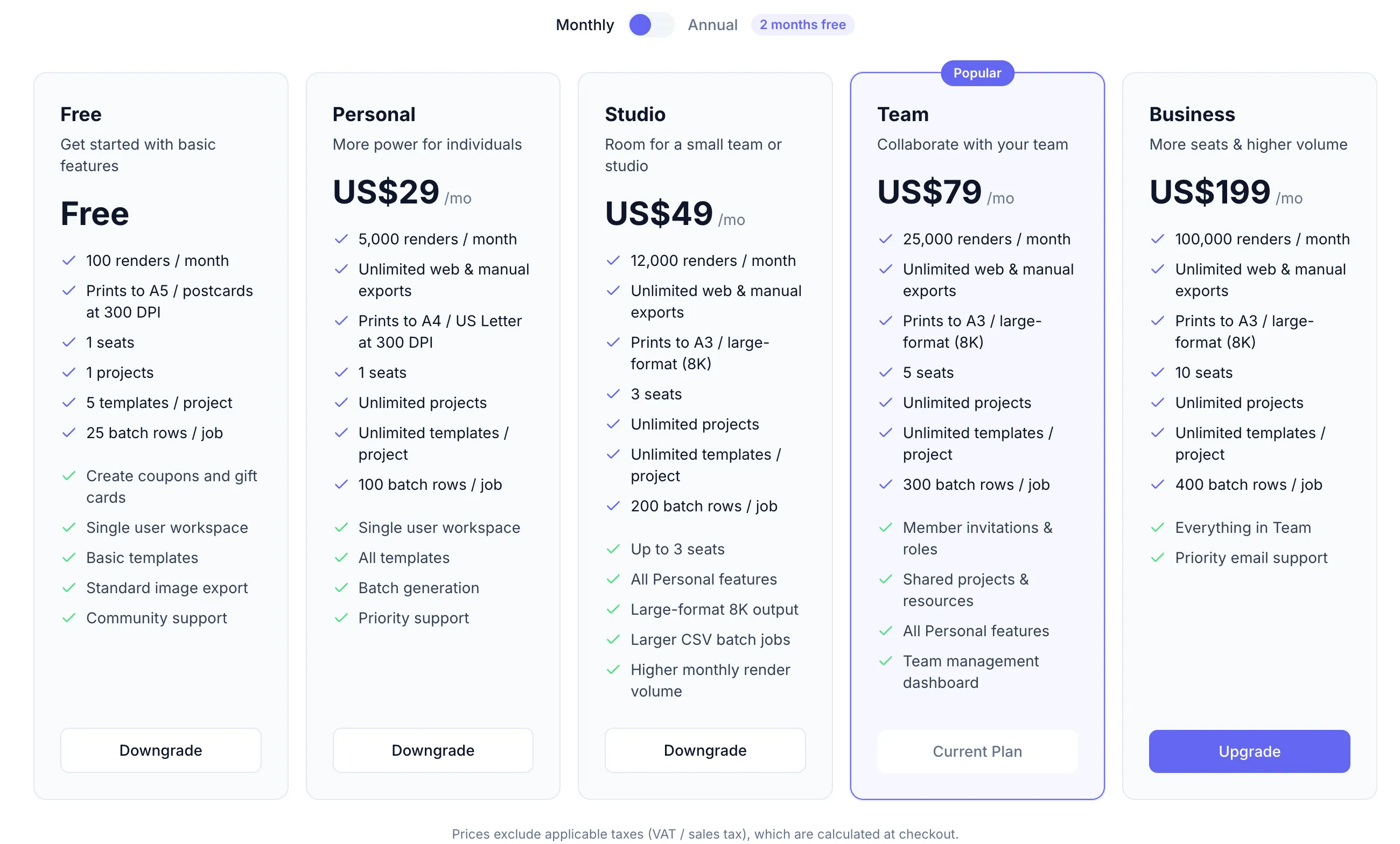
Upgrading
Section titled “Upgrading”- Go to Settings → Billing → Change plan (or navigate to
/plans). - Find the plan you want and click Upgrade.
- Complete the checkout flow. Your new plan activates as soon as the payment is confirmed.
Downgrading
Section titled “Downgrading”- On the plans page, find a lower-tier plan and click Downgrade.
- A confirmation dialog explains that the downgrade takes effect at the end of your current billing period — you keep current features until then.
- Confirm to schedule the downgrade.
Switching billing cycle (monthly ↔ annual)
Section titled “Switching billing cycle (monthly ↔ annual)”Use the Monthly / Annual toggle on the plans page. Any switch applies at your next renewal date.
What happens to your data
Section titled “What happens to your data”Downgrading does not delete projects or templates. However, features gated to the higher plan (e.g. team members on a Team plan being downgraded to Personal) will become inaccessible. Export any data you need before the downgrade takes effect.