

Working with Multiple Templates
A single project can hold multiple templates. This is useful when a design has more than one side (e.g. front and back of a gift card) or when you want a family of related assets in one place (e.g. square and landscape versions of a social post).
The template tab bar
Section titled “The template tab bar”When a project is open, a horizontal tab bar appears below the header. Each tab represents one template.
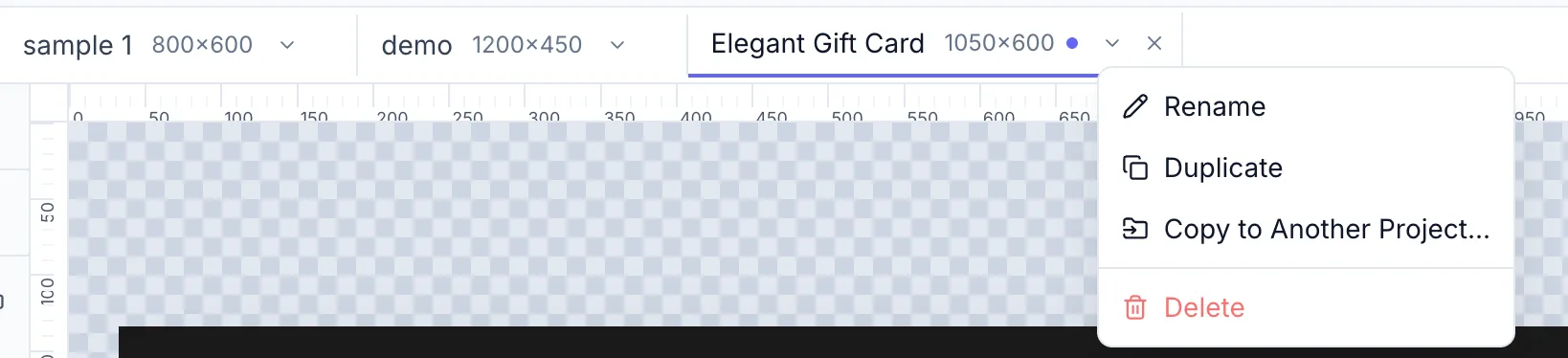
Tab indicators
Section titled “Tab indicators”| Indicator | Meaning |
|---|---|
| Orange dot | Unsaved changes in this template |
| No dot | Template is saved |
Tab menu (⋯)
Section titled “Tab menu (⋯)”Click the three-dot menu on any tab for these actions:
| Action | What it does |
|---|---|
| Rename | Edit the template name inline |
| Save | Save changes to this template |
| Duplicate | Create a copy of this template in the same project |
| Copy to Project | Copy this template into a different project |
| Delete | Permanently delete this template (confirmation required) |
Adding a template
Section titled “Adding a template”Click the + button at the right end of the tab bar (tooltip: “New Canvas”). The New Canvas dialog opens — choose a preset or enter custom dimensions. See Setting Up the Canvas.
Template quota
Section titled “Template quota”On the Free plan the number of templates per project may be limited. If the + button is disabled or grayed out you’ve reached the limit.
Unsaved changes
Section titled “Unsaved changes”If you close or navigate away from a template with unsaved changes, an Unsaved Changes dialog appears: “You have unsaved changes. Would you like to save before proceeding?” with Don’t Save, Cancel, and Save buttons.